
WordPress Web Design

Setting up a WordPress Site
Before you can start designing your WordPress website, you need to set it up. This involves choosing a hosting provider, installing WordPress, and selecting a theme.
Choosing a Hosting Provider
The first step in setting up a WordPress site is to choose a hosting provider. This is the company that will host your website on their servers and make it available to the public. There are many hosting providers to choose from, and it’s important to do your research before making a decision.
Some things to consider when choosing a hosting provider include:
- Price: How much does the hosting plan cost? Are there any discounts available?
- Features: Does the hosting plan include features such as a free domain name, SSL certificate, or email accounts?
- Support: Does the hosting provider have a knowledgeable and helpful support team that is available 24/7?
- Performance: How fast and reliable is the hosting provider’s servers?
Once you have chosen a hosting provider, you will need to sign up for a hosting plan and set up your account. This typically involves entering your personal and billing information, as well as choosing a domain name (i.e., your website’s address).

Installing WordPress
Once you have set up your hosting account, you can install WordPress. This process will vary depending on your hosting provider, but generally, you will need to log in to your hosting control panel and follow the prompts to install WordPress. Some hosting providers offer a one-click installation process, which makes it even easier to get started.

Selecting a Theme
A theme is a pre-designed template that determines the overall look and feel of your WordPress site. There are thousands of themes available, ranging from simple and minimalistic to complex and feature-rich. When selecting a theme, consider your personal preferences and the needs of your website. Some things to consider include:
- Design: Does the theme match the style and aesthetic of your website?
- Features: Does the theme include the features and functionality that you need?
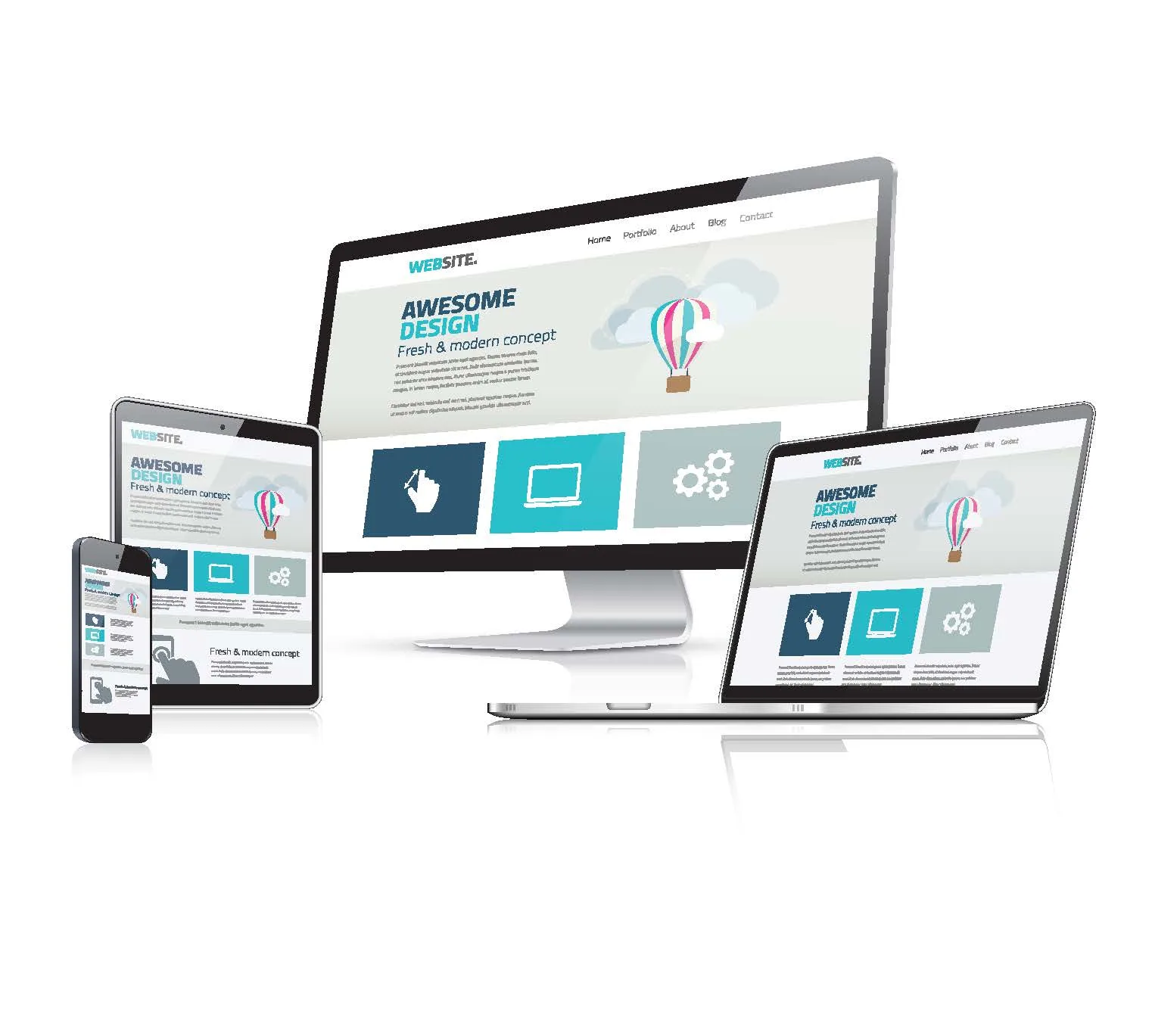
- Responsiveness: Is the theme optimised for mobile devices?
Once you have chosen a theme, you can install it by logging in to your WordPress dashboard and going to the “Appearance” section. From there, you can preview and install themes, as well as customize their settings.
In the next section, we will cover how to customise your WordPress site, including adding pages and posts, customizing the appearance of your site, and using plugins to add functionality.
Customizing Your WordPress Site
Now that you have set up your WordPress site and chosen a theme, it’s time to start customizing it to meet your specific needs and goals. In this section, we will cover how to add pages and posts, customize the appearance of your site, and use plugins to add functionality.
Customising the Appearance of Your Site
WordPress allows you to customise the appearance of your site using menus, widgets, and other features. Here are a few things you can do to customize the appearance of your site:
Designing Your WordPress Site
Now that you have set up and customised your WordPress site, it’s time to focus on the design. In this section, we will cover how to use the WordPress editor, create custom designs with CSS, and work with images and media.
Using the WordPress Editor
The WordPress editor is a user-friendly tool that allows you to create and format content for your website. It includes a visual editor, which allows you to see what your content will look like as you create it, as well as a text editor for more advanced formatting. To use the WordPress editor, simply log in to your WordPress dashboard and go to the “Pages” or “Posts” section. From there, you can create a new page or post or edit an existing one.

Creating Custom Designs with CSS
CSS (Cascading Style Sheets) is a programming language that is used to style and layout web pages. If you have knowledge of CSS, you can use it to create custom designs for your WordPress site. To add CSS to your site, you can either edit your theme’s style.css file or use the “Customise” feature to add CSS code directly.
Working with Images and Media
Adding images and other media to your WordPress site can help to make it more visually appealing and engaging. To add an image or other media to a page or post, simply click on the “Add Media” button and select the file you want to upload. You can then align the image and add a caption if desired.
In the next section, we will cover how to optimise your WordPress site, including SEO best practices, increasing site performance, and security measures.

Optimising Your WordPress Site
Once your WordPress site is set up and designed, it’s important to focus on optimisation. In this section, we will cover SEO best practices, increasing site performance, and security measures.
- Use relevant, keyword-rich titles and descriptions for your pages and posts.
- Use header tags (e.g., H1, H2, etc.) to structure your content and make it easier for search engines to understand.
- Use alt tags to describe images and help search engines understand the content of your site.
- Use internal linking to help search engines discover and index your site’s content.
There are also many WordPress plugins that can help with SEO, such as Yoast SEO and All in One SEO Pack.
- Use a caching plugin to store static copies of your site’s pages and posts, which can help them load faster.
- Optimise images by compressing them and using appropriate file formats.
- Use a content delivery network (CDN) to serve your site’s content from servers that are closer to your visitors.
- Use a strong and unique password for your WordPress account and encourage your users to do the same.
- Keep WordPress and any plugins or themes you use up to date to ensure that you have the latest security patches.
- Use a security plugin to scan your site for vulnerabilities and protect against attacks such as brute force and SQL injection.
In the next section, we will cover how to manage your WordPress site, including updating WordPress and plugins, backing up your site, and maintaining site uptime.
Managing Your WordPress Site
To ensure that your WordPress site is running smoothly and effectively, it’s important to regularly manage and maintain it. In this section, we will cover how to update WordPress and plugins, back up your site, and maintain site uptime.
Updating WordPress and Plugins
Keeping WordPress and any plugins or themes you use up to date is important for security and performance. WordPress releases updates regularly, which may include new features, bug fixes, and security patches. To update WordPress and your plugins, log in to your WordPress dashboard and go to the “Updates” section. From there, you can see if any updates are available and install them with just a few clicks.
Backing Up Your Site
Backing up your WordPress site is essential in case something goes wrong. It’s important to have a recent backup of your site’s files and database in case you need to restore your site in the event of a disaster such as a server crash or hacking. There are many WordPress plugins that can help you automate the backup process, such as UpdraftPlus and BackupBuddy.
Maintaining Site Uptime
Site uptime refers to the percentage of time that your site is available and accessible to visitors. It’s important to maintain a high uptime to ensure that your site is always available to your visitors. There are a few things you can do to improve site uptime, including:
- Choosing a reliable hosting provider with fast and reliable servers.
- Monitoring your site’s uptime and performance using a tool such as Pingdom or UptimeRobot.
- Using a plugin such as Cloudflare to improve site performance and protect against attacks.
In the next section, we will conclude this guide by summarising the key points and discussing next steps for improving your WordPress web design skills. Stay tuned!
A Comprehensive Guide to WordPress Web Design
In this guide, we have covered everything you need to know to create a professional and successful WordPress website from scratch. We started by introducing WordPress and discussing the benefits of using it for web design. Then, we walked you through the steps of setting up a WordPress site, including choosing a hosting provider, installing WordPress, and selecting a theme.
Next, we covered how to customize your WordPress site by adding pages and posts, customising the appearance of your site, and using plugins to add functionality. We also discussed how to design your WordPress site, including using the WordPress editor, creating custom designs with CSS, and working with images and media.
Finally, we covered how to optimise your WordPress site for SEO, performance, and security, as well as how to manage your site by updating WordPress and plugins, backing up your site, and maintaining site uptime.
By following the steps outlined in this guide, you should now have a solid foundation in WordPress web design. However, this is just the beginning. To continue improving your skills, we recommend exploring the following resources:
- The WordPress Codex: The official WordPress documentation, which covers everything from installation to theme development.
- WordPress forums: A community of WordPress users and developers who are happy to help with questions and issues.
- Online courses and tutorials: There are many online courses and tutorials available that can help you learn more about WordPress web design.
We hope that this guide has been helpful and that you are now ready to start building your own professional WordPress website.
Frequently Asked Questions
What is WordPress?
WordPress is a content management system (CMS) that allows you to create and manage a website. It is an open-source platform, which means that it is constantly being updated and improved by a community of developers.
Is WordPress easy to use?
Yes, WordPress is known for its ease of use. It has a simple, intuitive interface that allows even those with little to no coding experience to create professional-looking websites.
Can I customize my WordPress site?
Yes, WordPress is highly customisable. With a wide range of themes and plugins available, you can customize your site to meet your specific needs and goals.
Is WordPress free to use?
Yes, WordPress is free to use. However, you will need to pay for hosting and a domain name if you want to make your site available to the public.
Is WordPress SEO friendly?
Yes, WordPress is generally considered to be SEO friendly. It includes features such as clean URLs and the ability to add title tags and meta descriptions to your pages and posts.